 Keet Support
Call Transcripts & Summaries 📝
Record a call on Desktop with transcription turned on to get a shareable transcript and an AI-generated meeting summary with action items once the call ends.
How do I record and transcribe a call?
This feature is available on Desktop only.
Select the record control in the call toolbar. In the dialog that opens, tick 'Start transcription as well' if you also want a transcript and summary, then select 'Start recording':
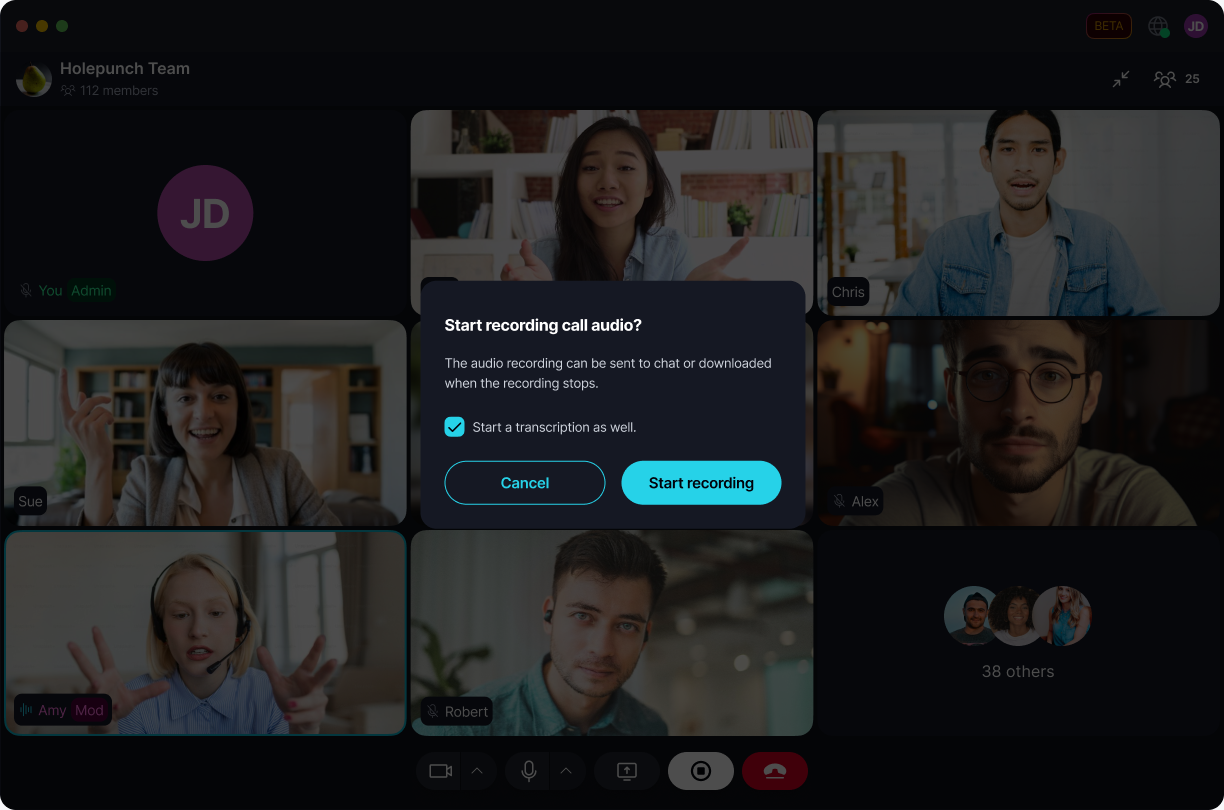
🔒 The recording is processed locally on your device to generate the transcript and summary - it isn't uploaded to a cloud transcription service. The transcription option only appears on devices that support local transcription.
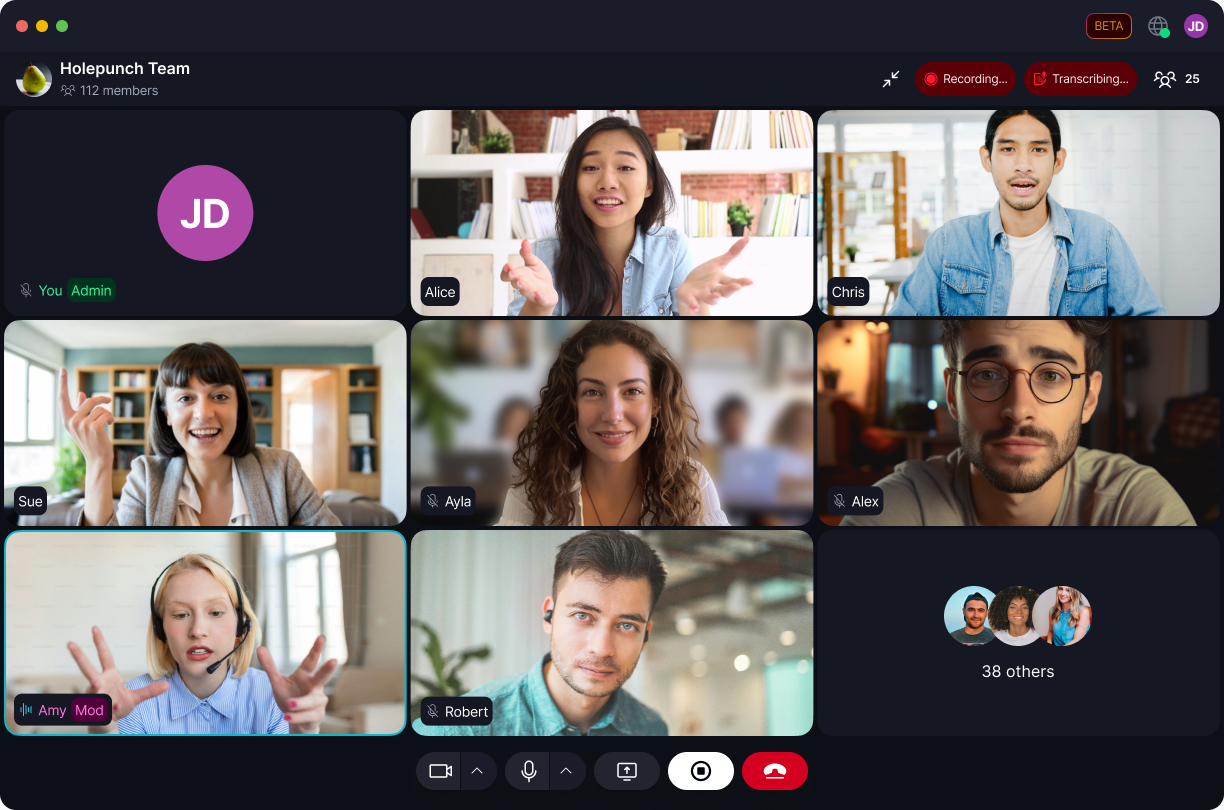
While it's running, the call header shows 'Recording…' and 'Transcribing…' - the call stays fully usable the whole time:
How do I stop, and where does it go?
Select the record control again. Choose whether to send the result to the room's chat or download it - if you started transcription too, it stops and saves alongside the recording automatically:
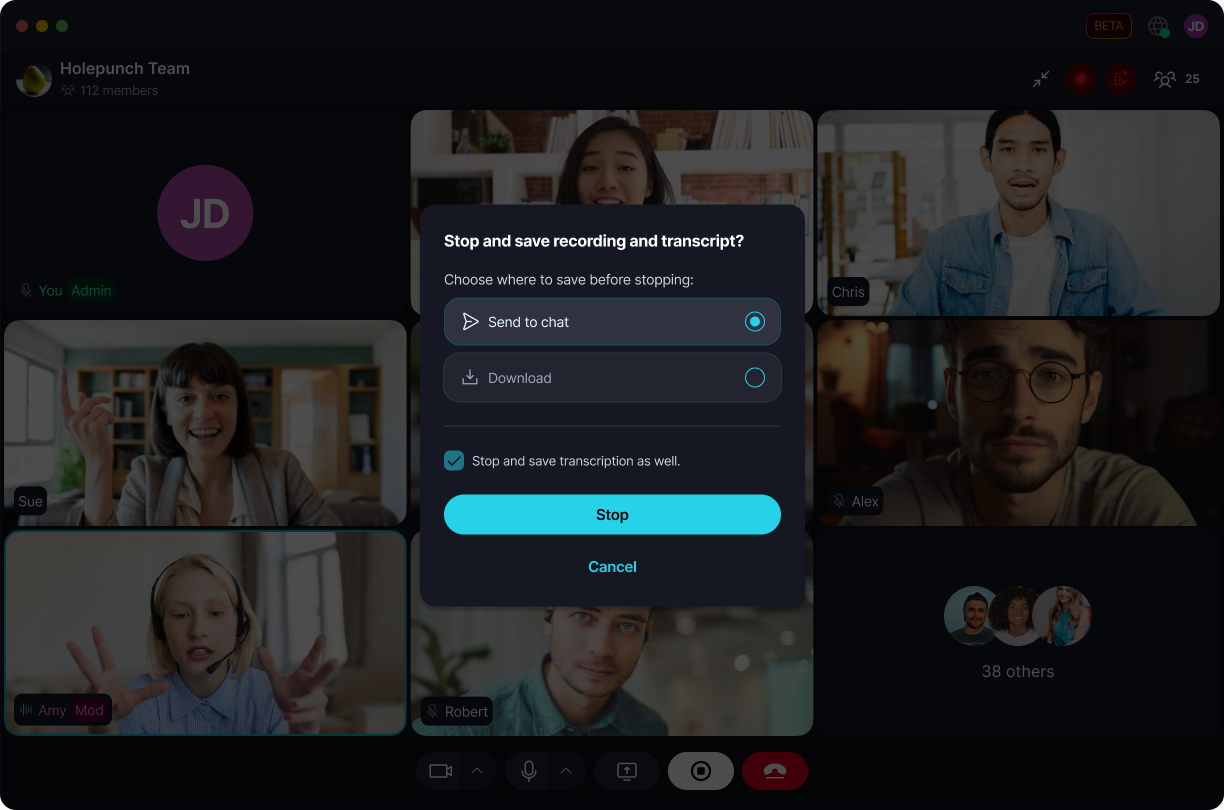
⏱️ Under 5 minutes, Keet warns 'Your audio is very short for a meeting summary, it may not work well for transcription'. The summary can describe a call that never happened - check it against the recording.
If you send it to chat, the recording itself lands right away as a normal audio message. The transcript and summary take a little longer, so Keet shows a brief preparing notice first, then lets you know once only the transcript is left to finish:
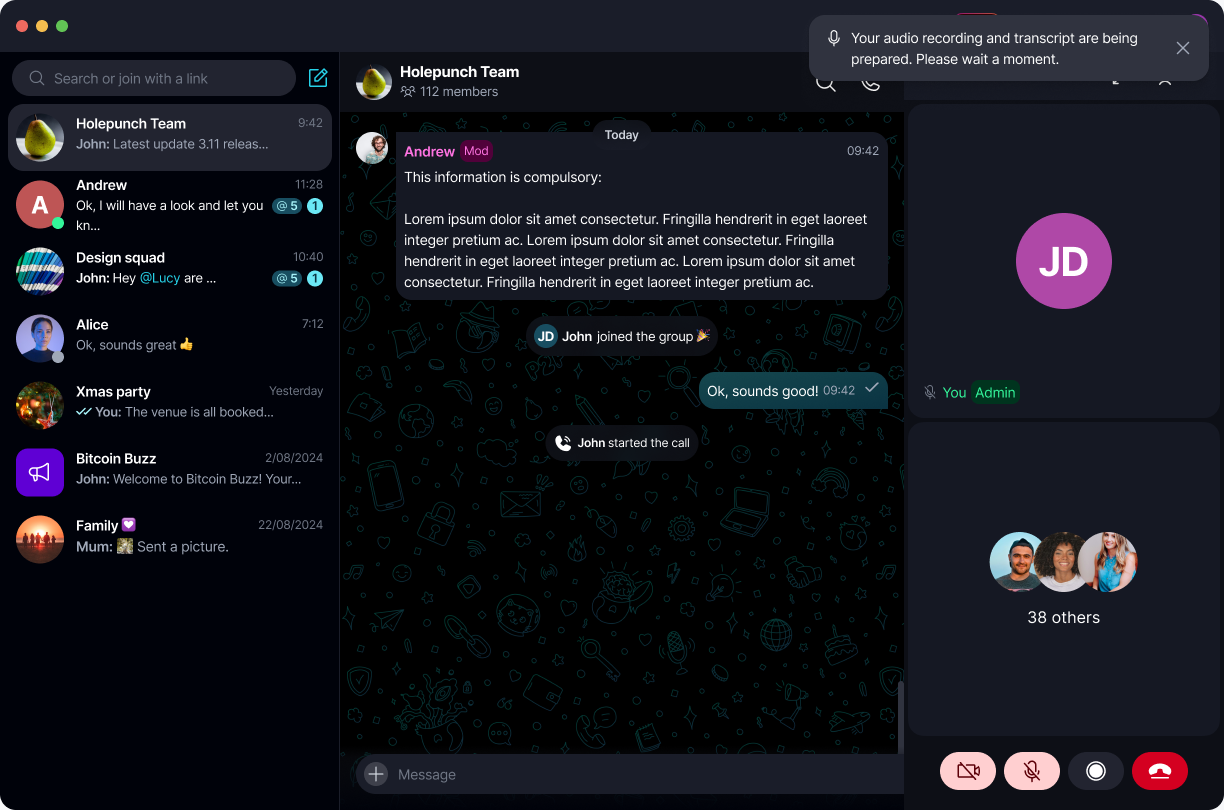
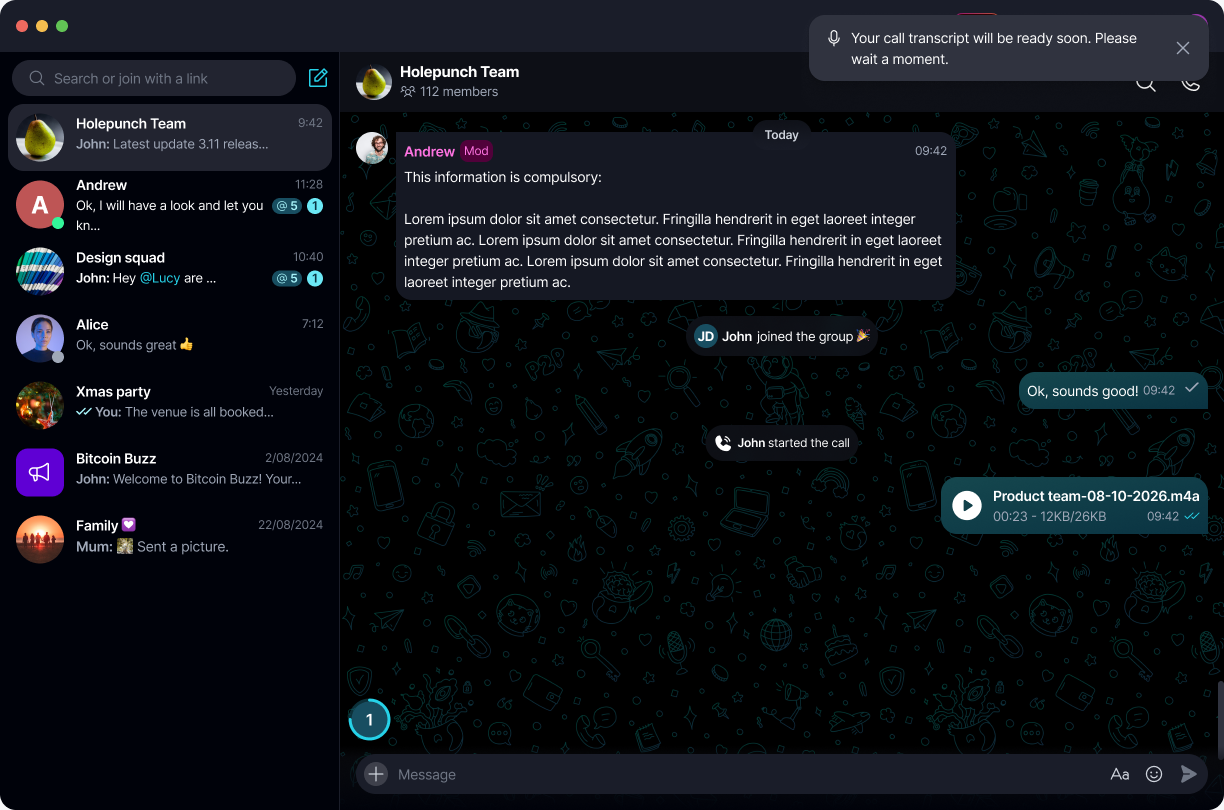
If transcript or summary generation fails, your audio recording is unaffected - it stays available to play or download, and Keet offers to recover it if processing was interrupted.
Once ready, the transcript arrives as its own message with an AI-generated summary shown inline, and a 'Show all' link to expand it:
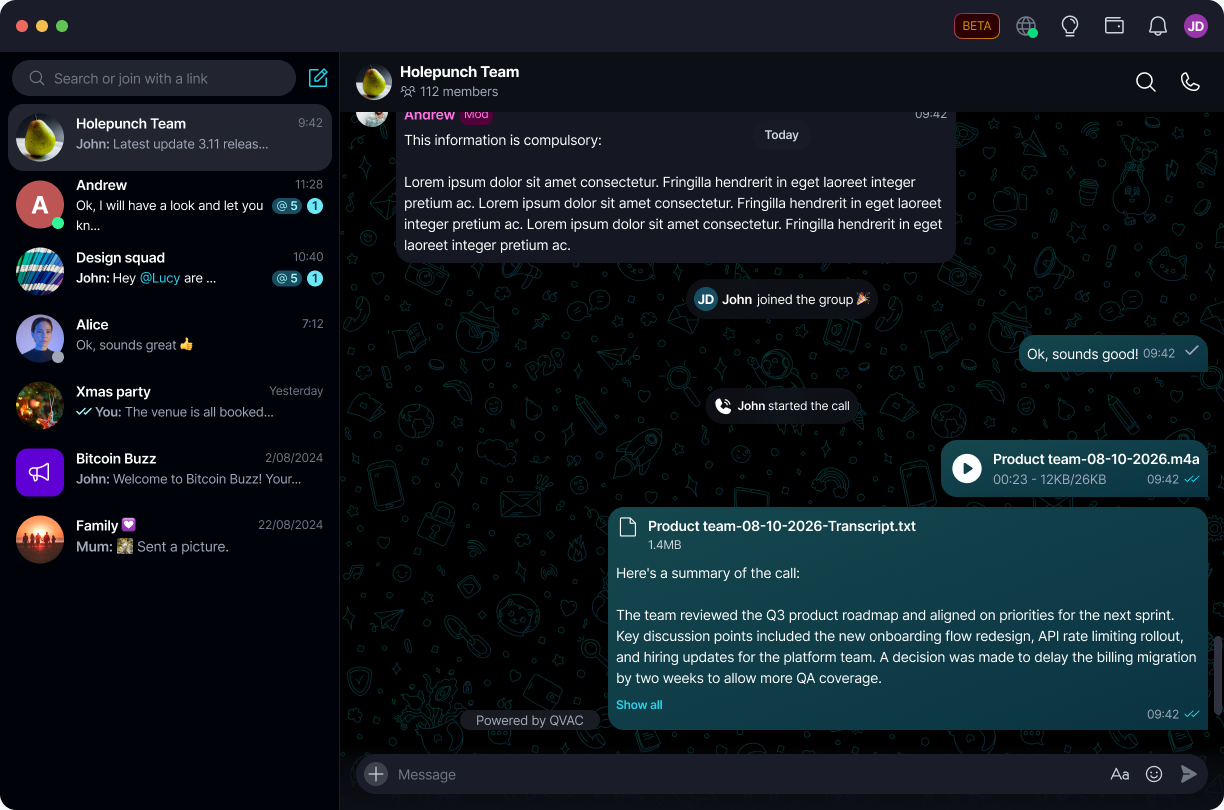
If a speaker can't be identified in the recording, Keet won't guess a name or attribute an action item to the wrong person. If a call has no usable speech, you'll see a clear message that there wasn't enough audio to transcribe or summarize instead of an empty result.
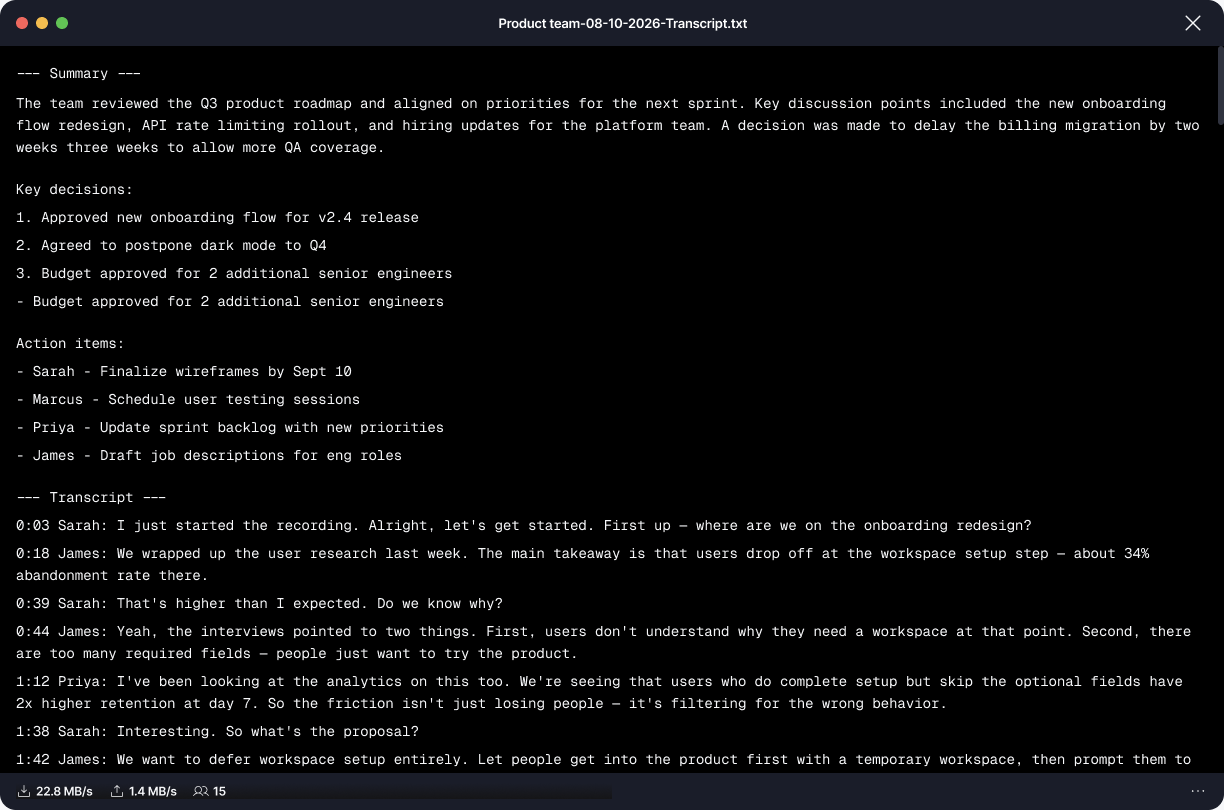
Opening the attached file shows the full record - a summary, key decisions, action items, and the complete timestamped, speaker-labeled transcript - and its text is selectable:
Can I view a transcript on Mobile?
Starting or processing a recording/transcription is Desktop-only. But since the result is delivered as ordinary chat messages - an audio file, then a transcript file with its summary - Mobile can already open, play, and download them like any other shared file. Mobile doesn't yet render the AI summary card the same way Desktop does.